Running an event with TargetAce
An organiser's guide: from setting the event up to publishing the results.
Download this guide (PDF) Open the Organiser Console
- What this guide covers
- What you need
- 1. Set up entry fees (once)
- 2. Create the event
- 3. Add the rounds and the sessions
- 4. Open entries
- 5. Watch the entries come in
- 6. Build the target list
- 7. On the day: check-in
- 8. Start shooting and score
- 9. Confirm the scores
- 10. Finish, and the results
- Checklist
- If something isn't working
What this guide covers
An event in TargetAce is a shoot on a date: archers enter and pay online, you build a target list, every target scores on a phone, and the results publish themselves. This guide follows one made-up event, the Kelvin Indoor Open, through every step.
You work in two places:
- The Organiser Console, at targetace.app/console, on a computer. Here you set the event up, watch the entries come in, print and export, and run the desk on the day.
- The TargetAce app, on your phone. Here you draw the target list, and here every target enters its scores.
Everyone else follows along on the event's public page, at an address like targetace.app/e/9USR3G, which needs no app and no sign-in.
An event moves through five stages, and you move it from one to the next: Draft, Entries open, Entries closed, Shooting now and Finished.
Events take their entry fee online. For a free club night with nothing to enter and nothing to pay, use a leaderboard instead: it is on the console's menu under Members' competitions.
What you need
- To be an organiser of your club in TargetAce, and signed in at targetace.app/console.
- A Stripe account for the club, so entry fees reach the club's bank account. Step 1 sets it up.
- Archers need the TargetAce app to enter and to score. It is free.
1. Set up entry fees (once)
In the console, open Club settings and go down to Entry fees. TargetAce can set up a new Stripe account for the club, or link one the club already has. Stripe asks for the club's details and a bank account, and checks who runs it. It takes about ten minutes. When the panel says Ready, you can put an entry fee on any event.
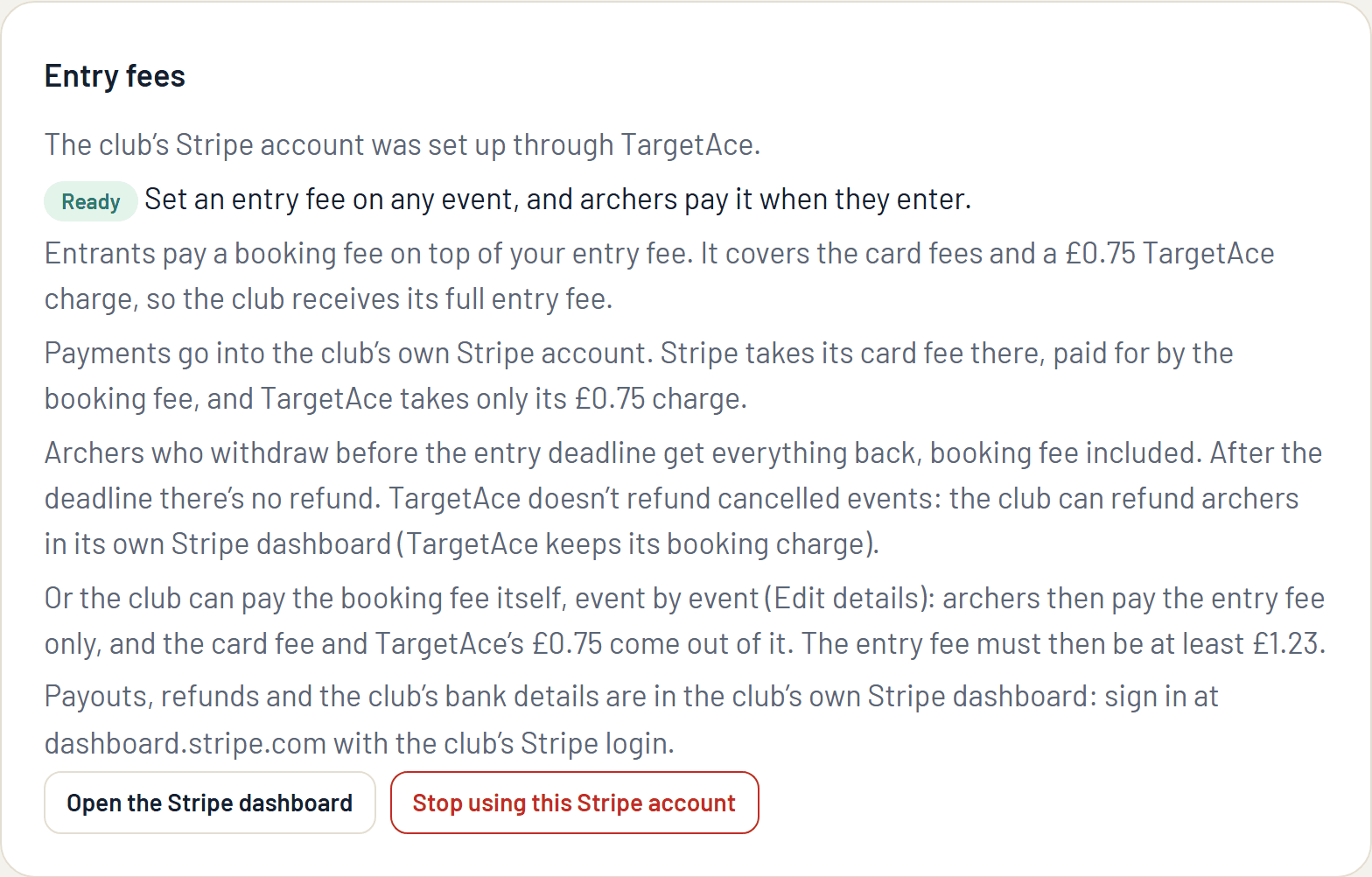
How the money works:
- The archer pays your entry fee plus a booking fee. The booking fee covers the card costs and TargetAce's charge of £1 a place (75p for a Club Plus club), so the club receives its entry fee in full.
- Or the club can pay the booking fee itself, event by event. Archers then pay the entry fee only, and the card costs and TargetAce's charge come out of it.
- Payments go straight into the club's own Stripe account. Payouts, refunds and bank details are in the club's Stripe dashboard.
- Clubs in the euro area take entry fees in euros. The booking fee is the card costs plus €1.20 a place (€0.90 on Club Plus), and the club passes TargetAce's part on from the console within 45 days.
2. Create the event
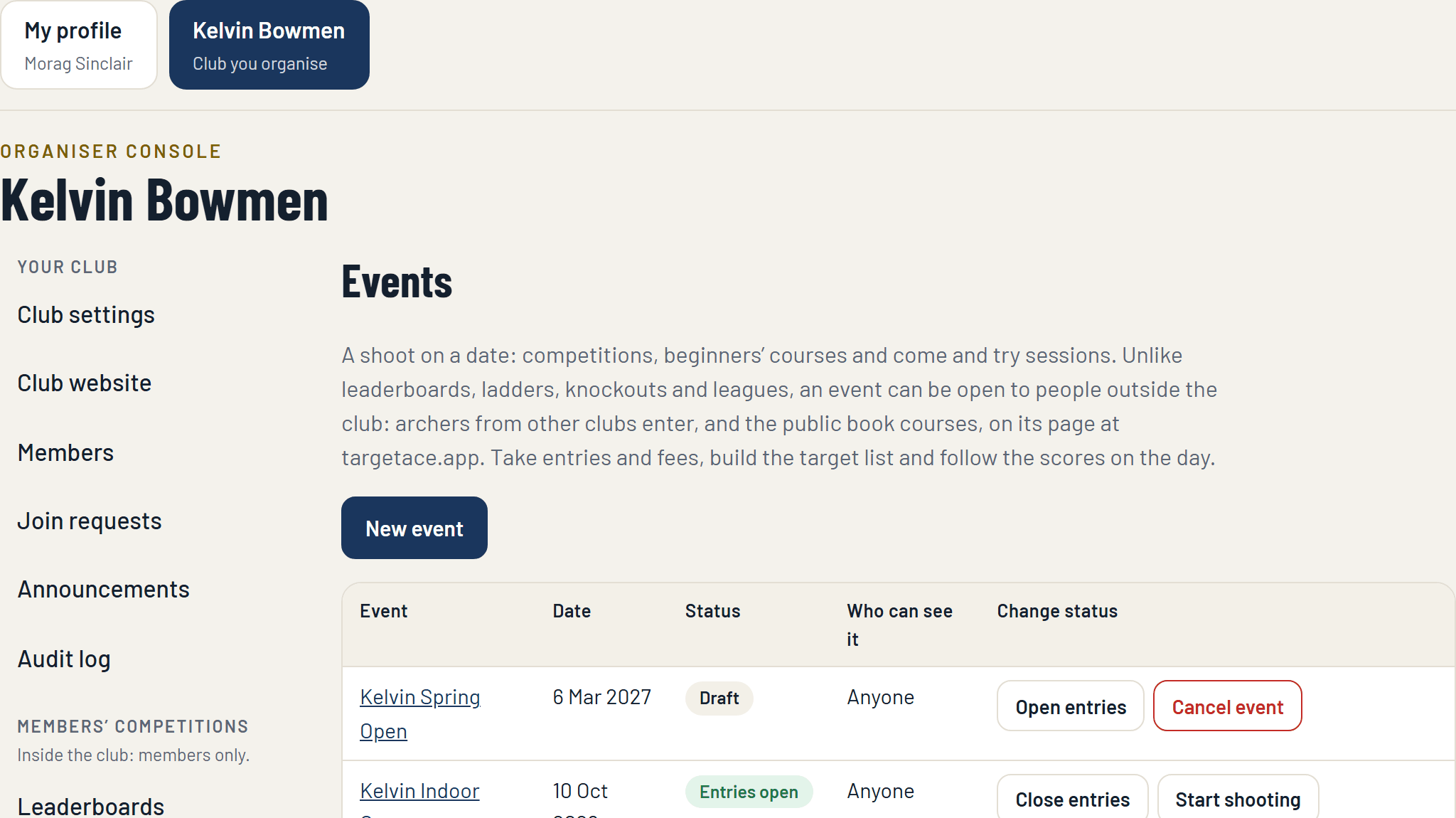
Open Events on the console's menu and press New event.
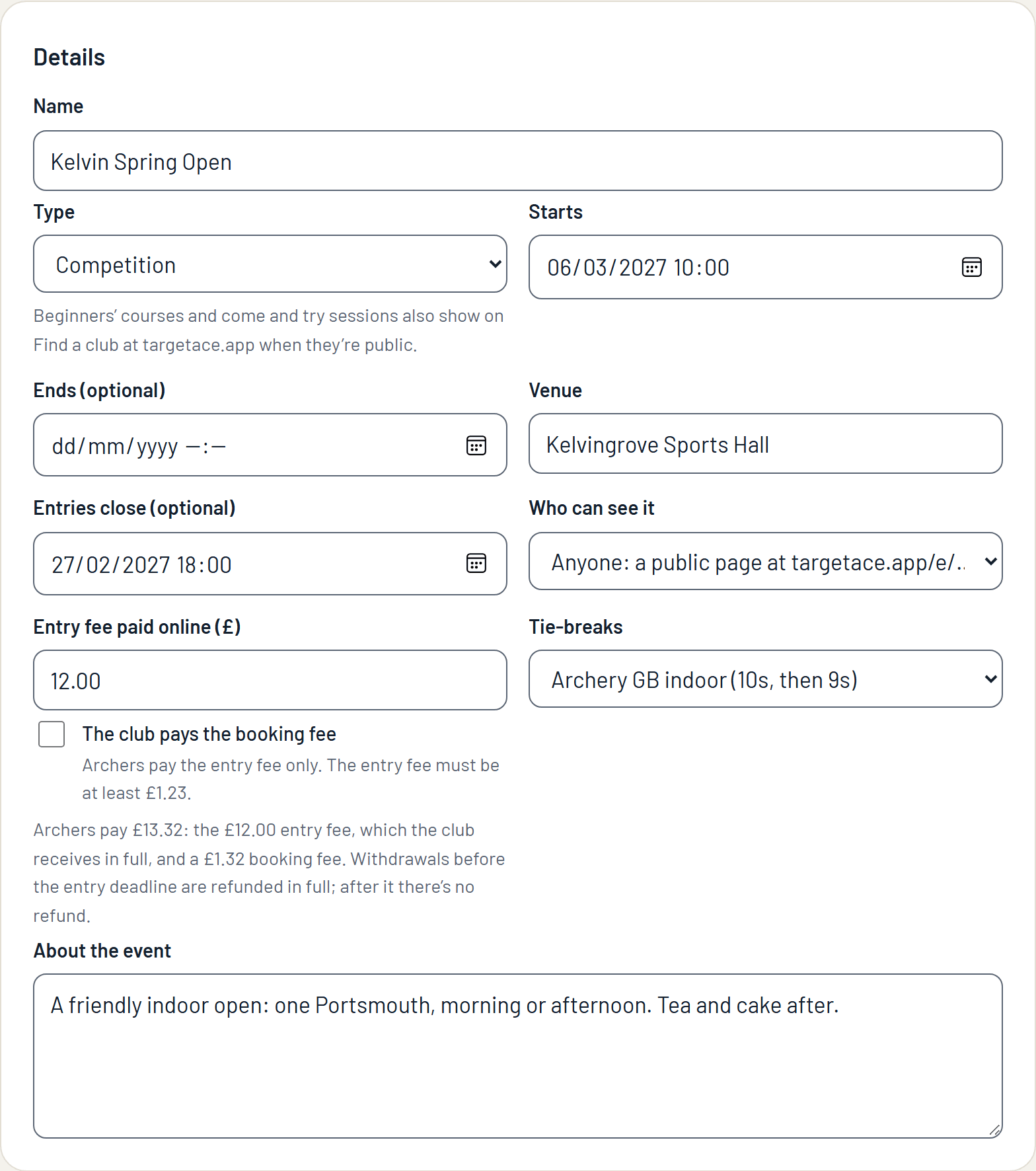
Fill in the details:
- Name, Starts, and the Venue.
- Type: Competition. (Beginners' courses and come and try sessions are also made here, and take bookings from the public.)
- Entries close: the entry deadline. It is also the refund deadline: an archer who withdraws before it gets everything back.
- Who can see it: club members only, or anyone. A public event gets its own page on targetace.app, and archers from other clubs can enter.
- Entry fee paid online: what the club wants to receive for each entry. The note underneath shows what the archer will pay.
- Tie-breaks: Archery GB outdoor (hits, then golds) or indoor (10s, then 9s).
- About the event: anything archers should know. It shows on the event's page.
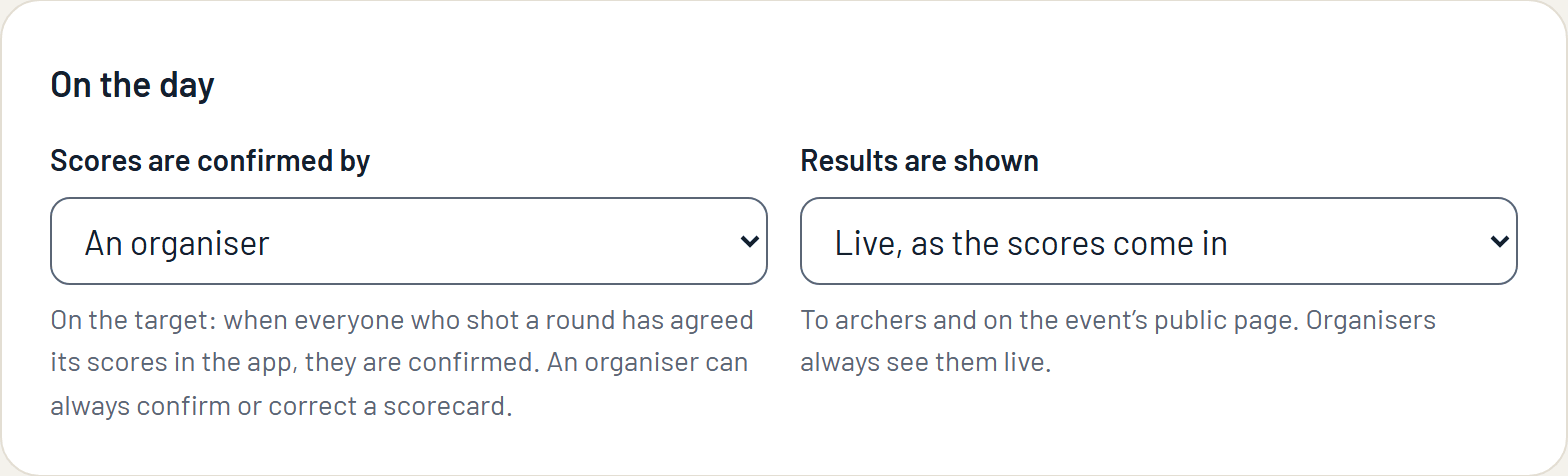
Then say how the day will run:
- Scores are confirmed by an organiser, or by the archers on each target in the app.
- Results are shown live as the scores come in, or only when the event has finished.
3. Add the rounds and the sessions
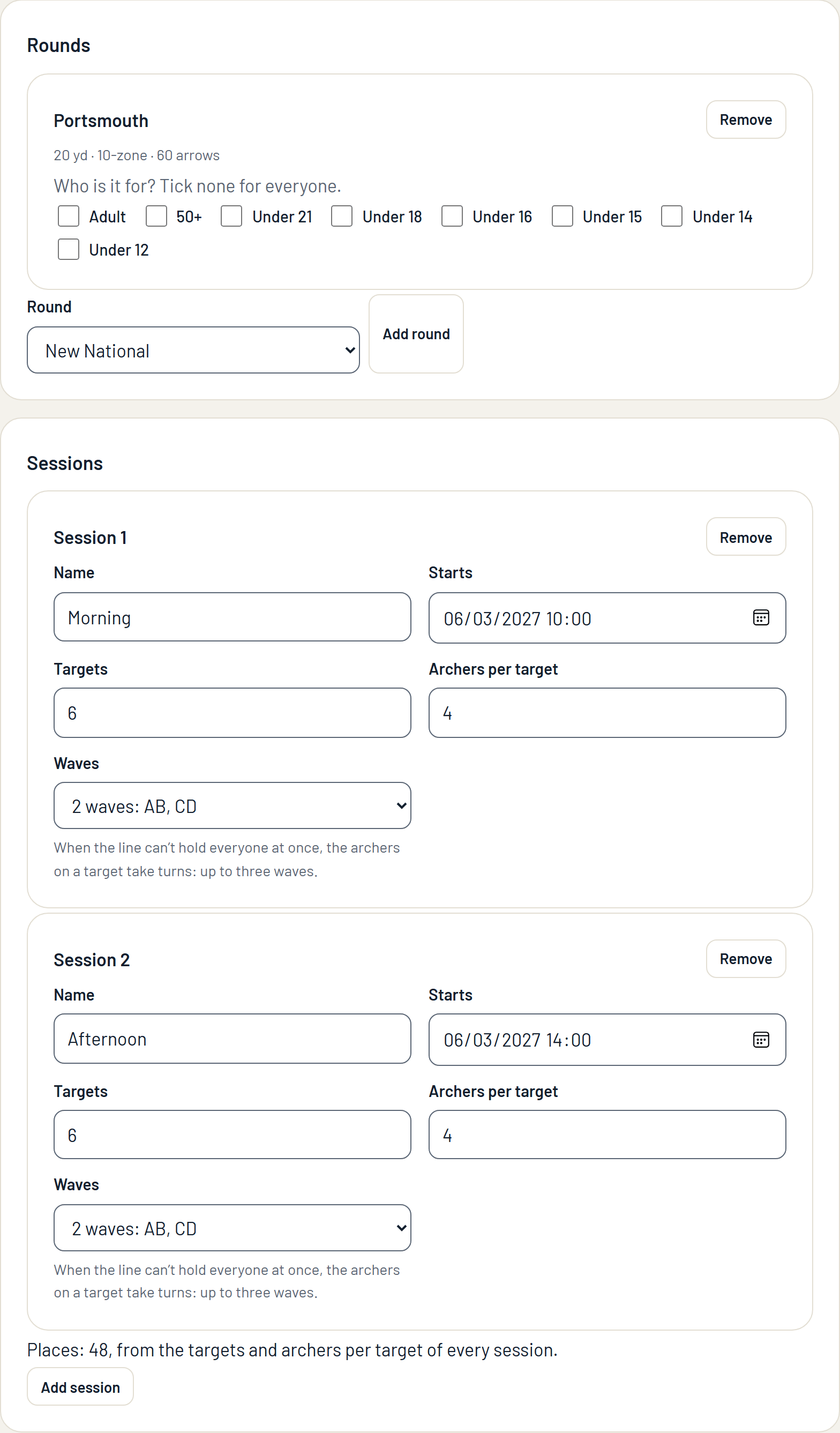
Rounds: pick each round archers can shoot from the list and press Add round. Tick age categories to keep a round for certain archers (a junior round, say); tick none and it is for everyone.
Sessions: when people shoot. For each session give the number of targets, the archers per target, and the waves: whether everyone shoots together, or the archers on a target take turns on the line (AB then CD).
You never type the number of places. The places are the targets: targets multiplied by archers per target, added up over the sessions. The form shows the figure as you go. When the event is full, archers join a waiting list.
Press Create event. It is saved as a draft: nobody else sees it yet.
Selling places by shoot type (optional)
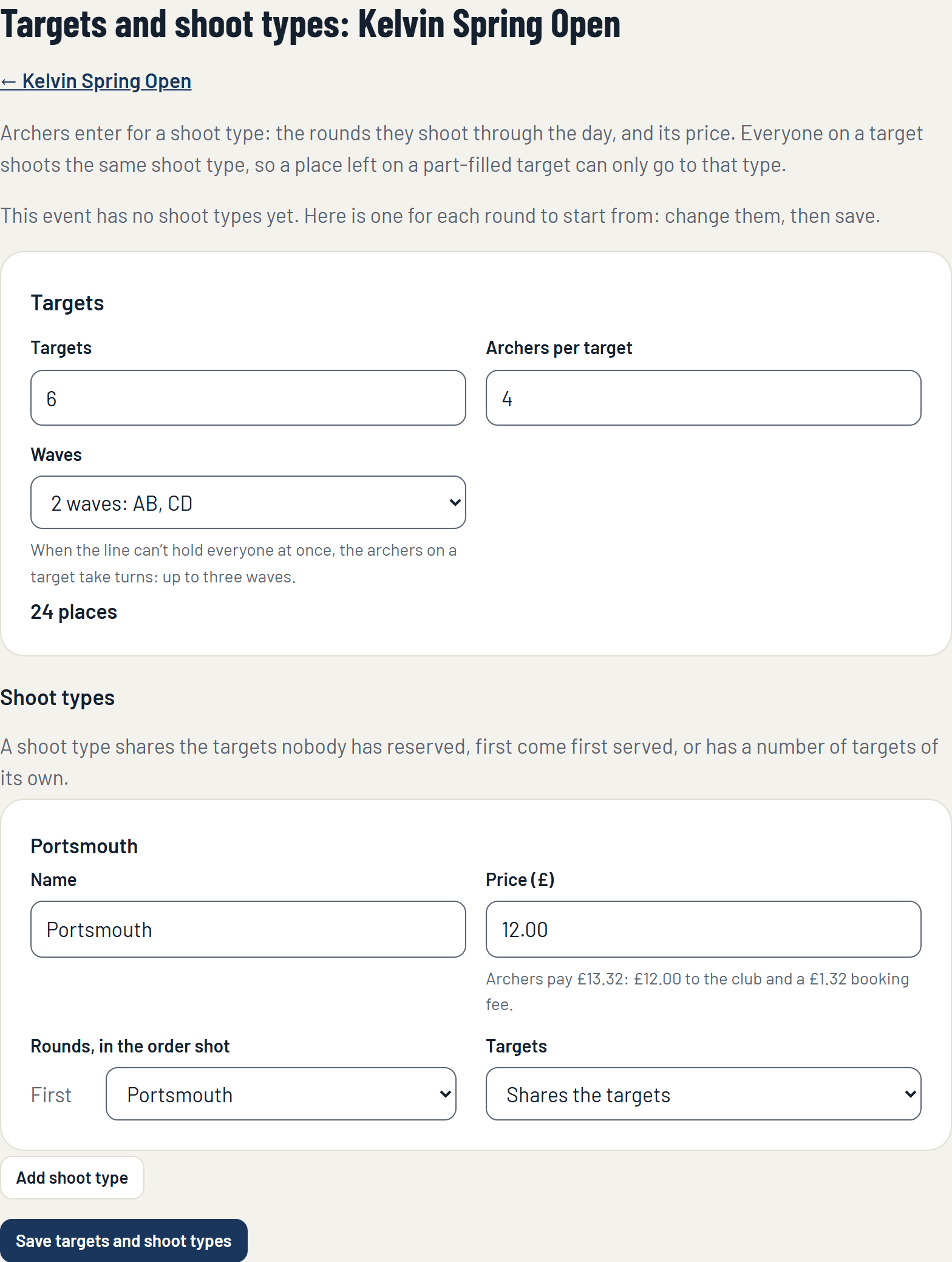
For an event where archers shoot more than one round in the day, or where rounds have different prices, use shoot types. On the event's page choose Set up targets and shoot types. A shoot type is a set of rounds shot in order, with a price of its own: a Portsmouth and a double Portsmouth can be two shoot types at one event. You set the line of targets once, and each shoot type either shares the targets or has some reserved for it. Each shoot type has its own waiting list.
4. Open entries
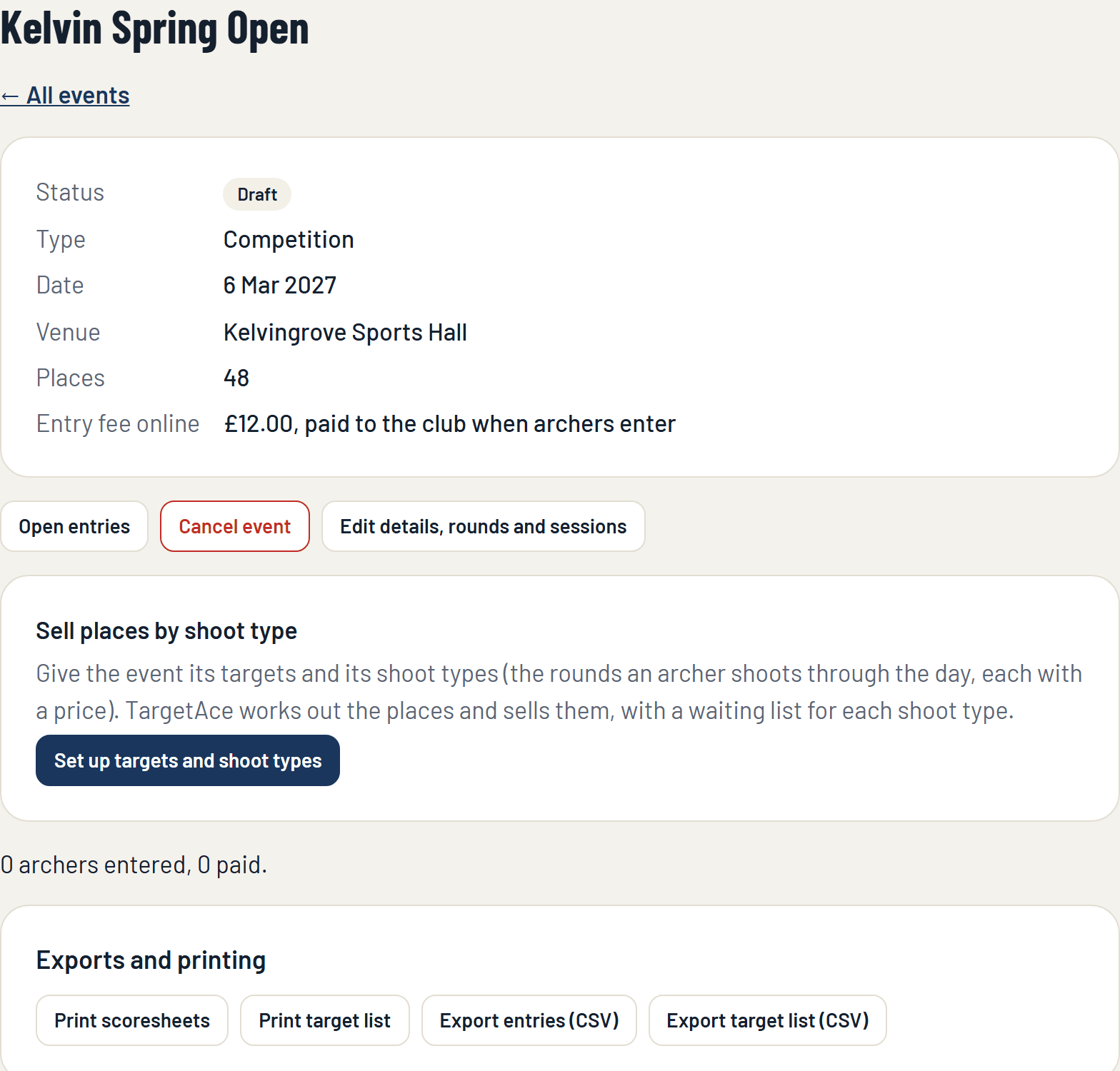
Open the event from the Events page and check it over. When you are ready, press Open entries.
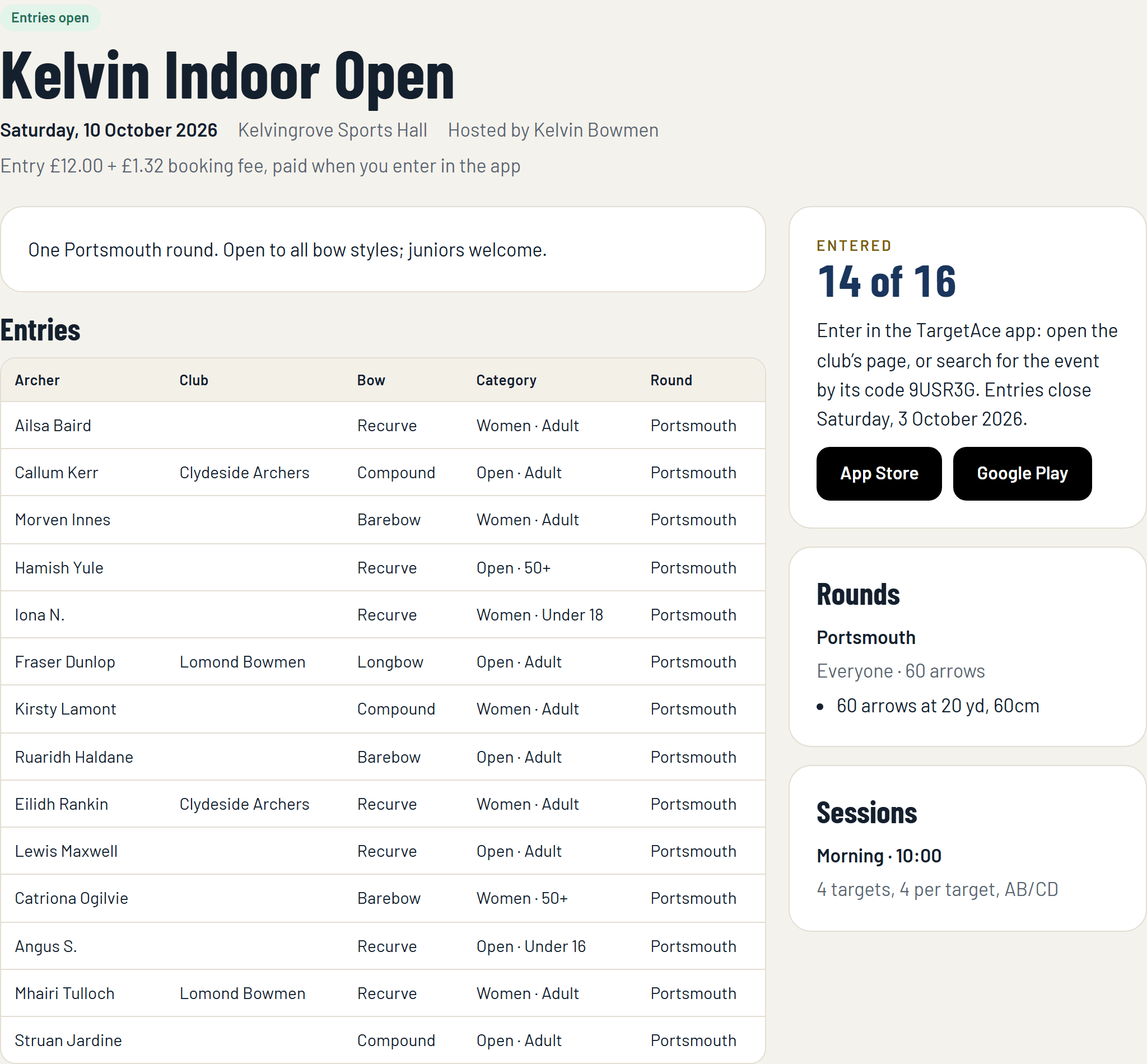
Archers can now enter:
- Club members see the event on the club's page in the app.
- Anyone else uses the public page (for a public event) or types the event code in the app. Share the page's address in your emails and on social media.
5. Watch the entries come in
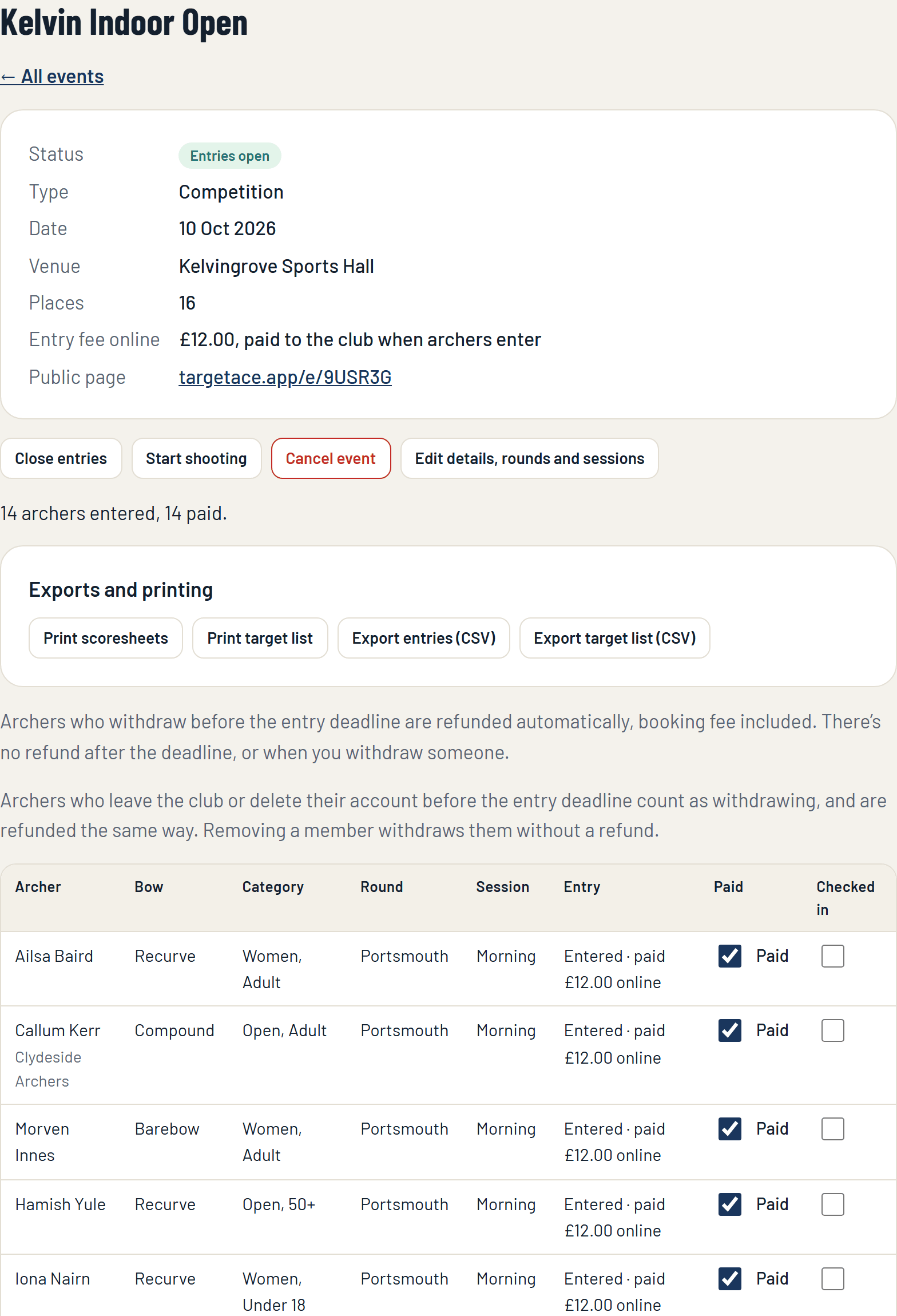
Archers enter in the app: they choose their round, bow style and category, and pay. Their place is confirmed when the payment goes through.
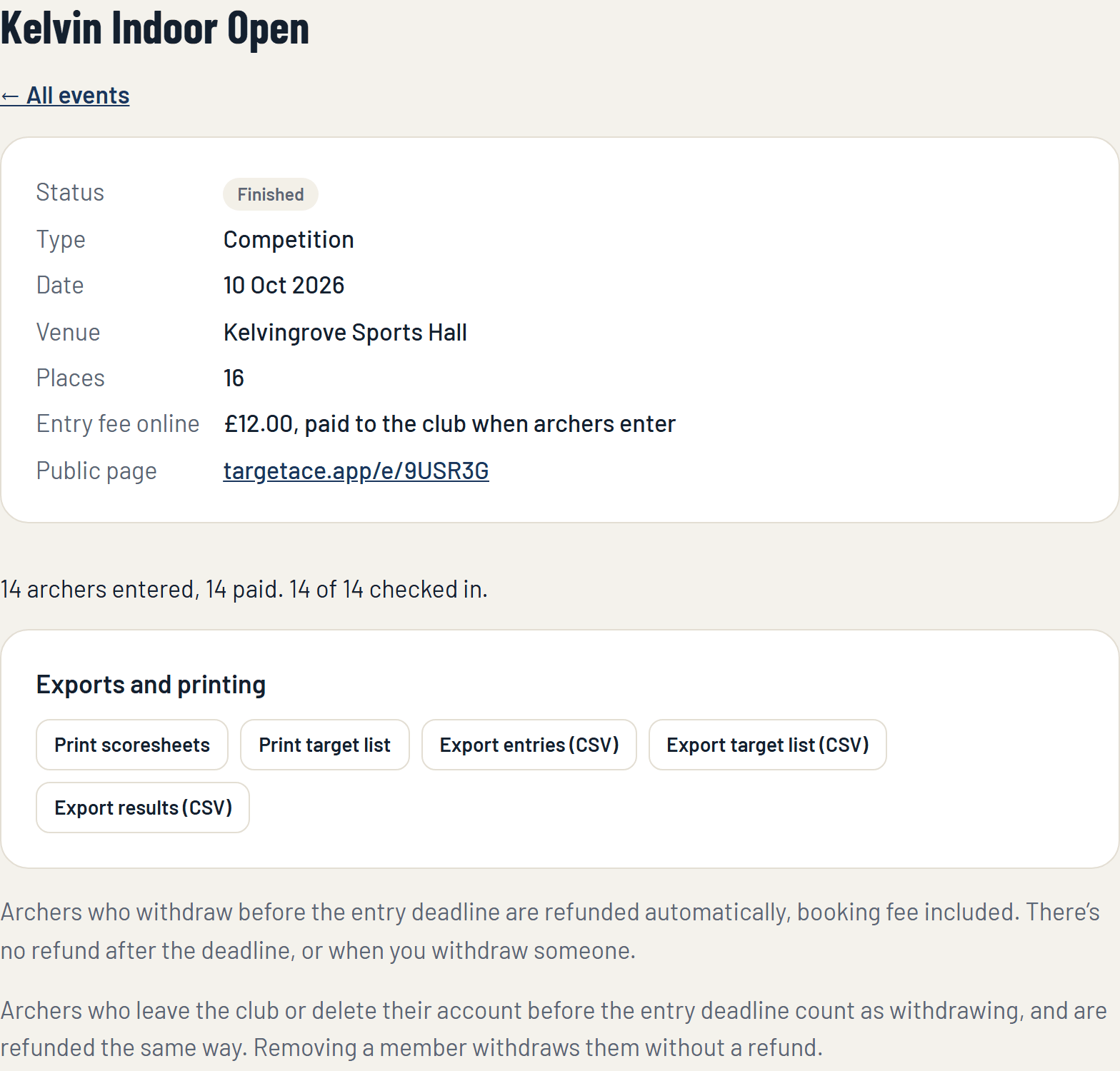
The event's page in the console lists every entry, with what each archer is shooting and whether they have paid. From here you can also export the entries as a spreadsheet (Club Plus).
Good to know:
- Full: once every place is taken, new archers join the waiting list. When a place comes free it is offered to the first archer waiting, who has a set time to pay for it.
- Withdrawing: an archer who withdraws before the entry deadline is refunded automatically, booking fee included. After the deadline there is no refund.
- If you cancel the event, TargetAce does not refund the entries: the club refunds archers from its own Stripe dashboard.
- You can press Close entries at any time, and reopen them.
6. Build the target list
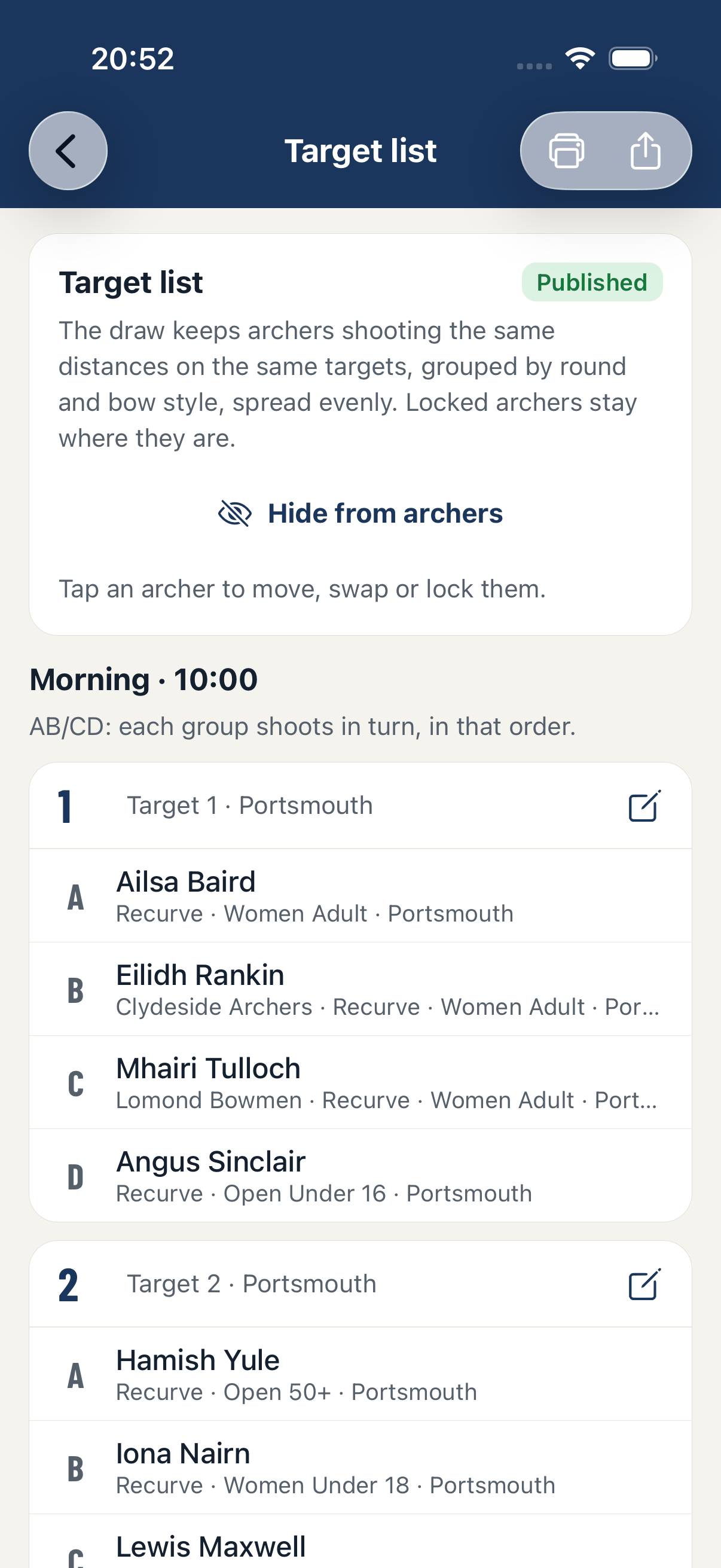
The target list is made in the app. Open the event in the app and, under On the day, choose Target list.
- Press Draw the target list. TargetAce places every archer: archers shooting the same distances share targets, grouped by round and bow style and spread evenly.
- Adjust it. Tap an archer to move them, swap two archers, or lock someone where they are so a redraw leaves them alone.
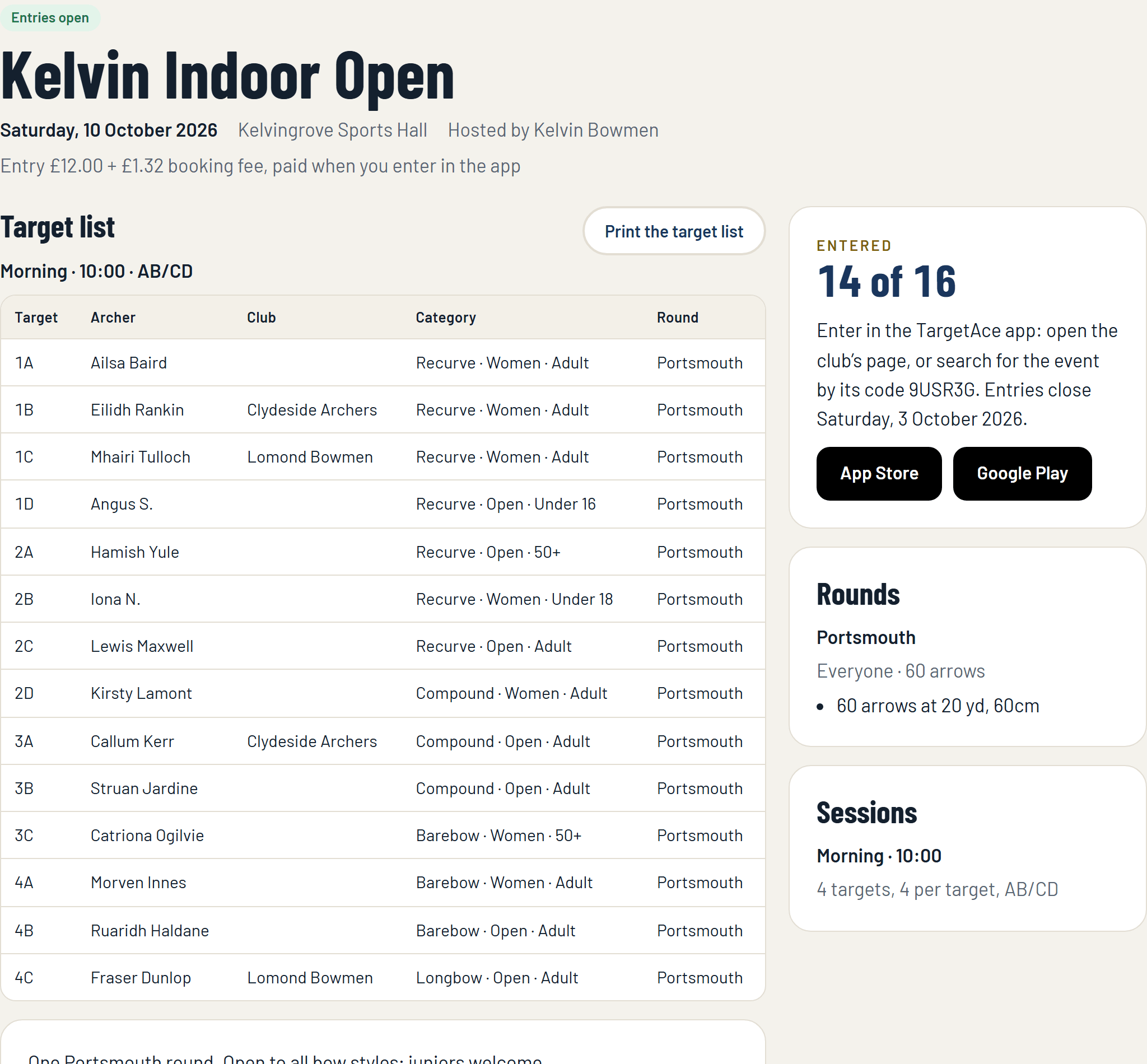
- Press Publish to archers. Until you do, archers do not see it. Once published, each archer sees their own target in the app, and the whole list is on the public page.
Back in the console, a Club Plus club can print the target list and the scoresheets, with the club's badge, and export the target list as a spreadsheet.

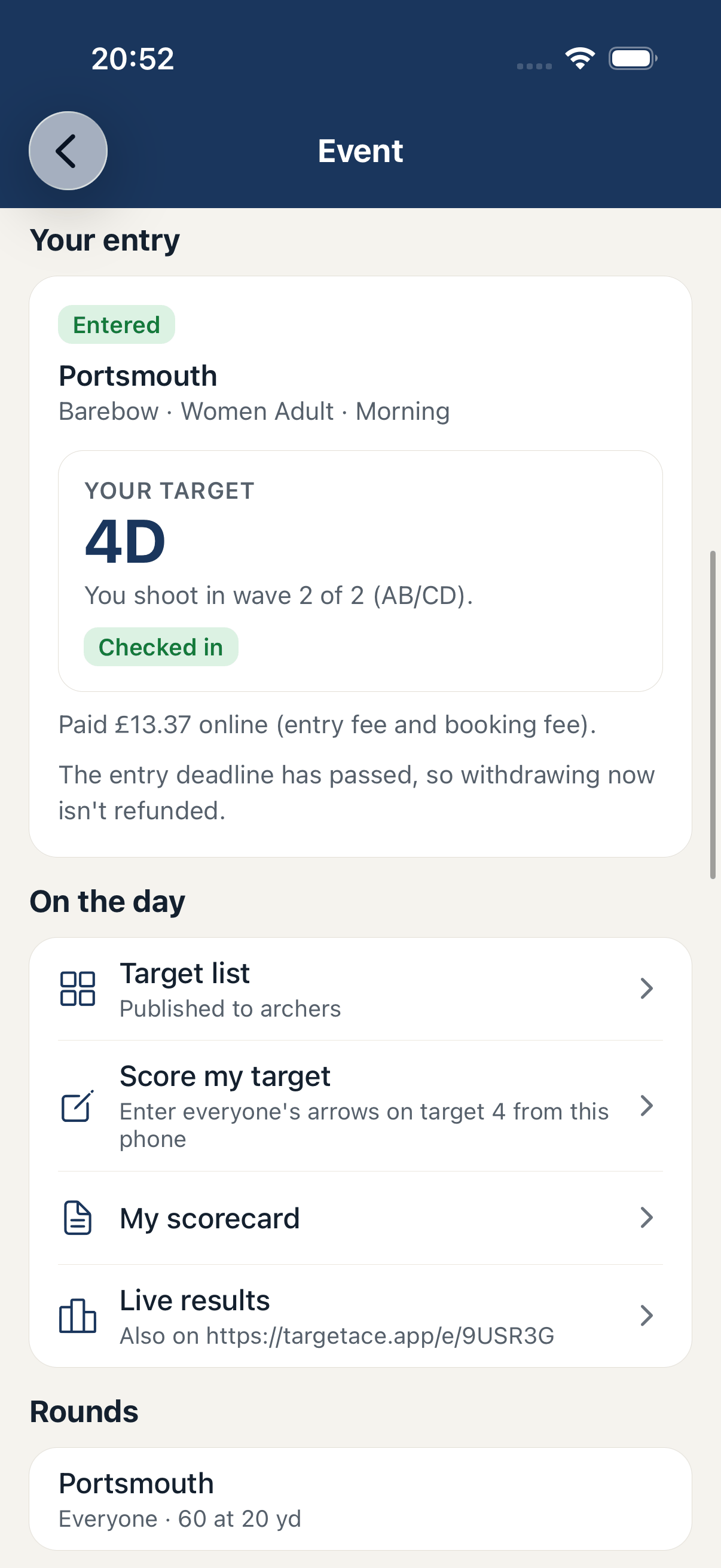
7. On the day: check-in
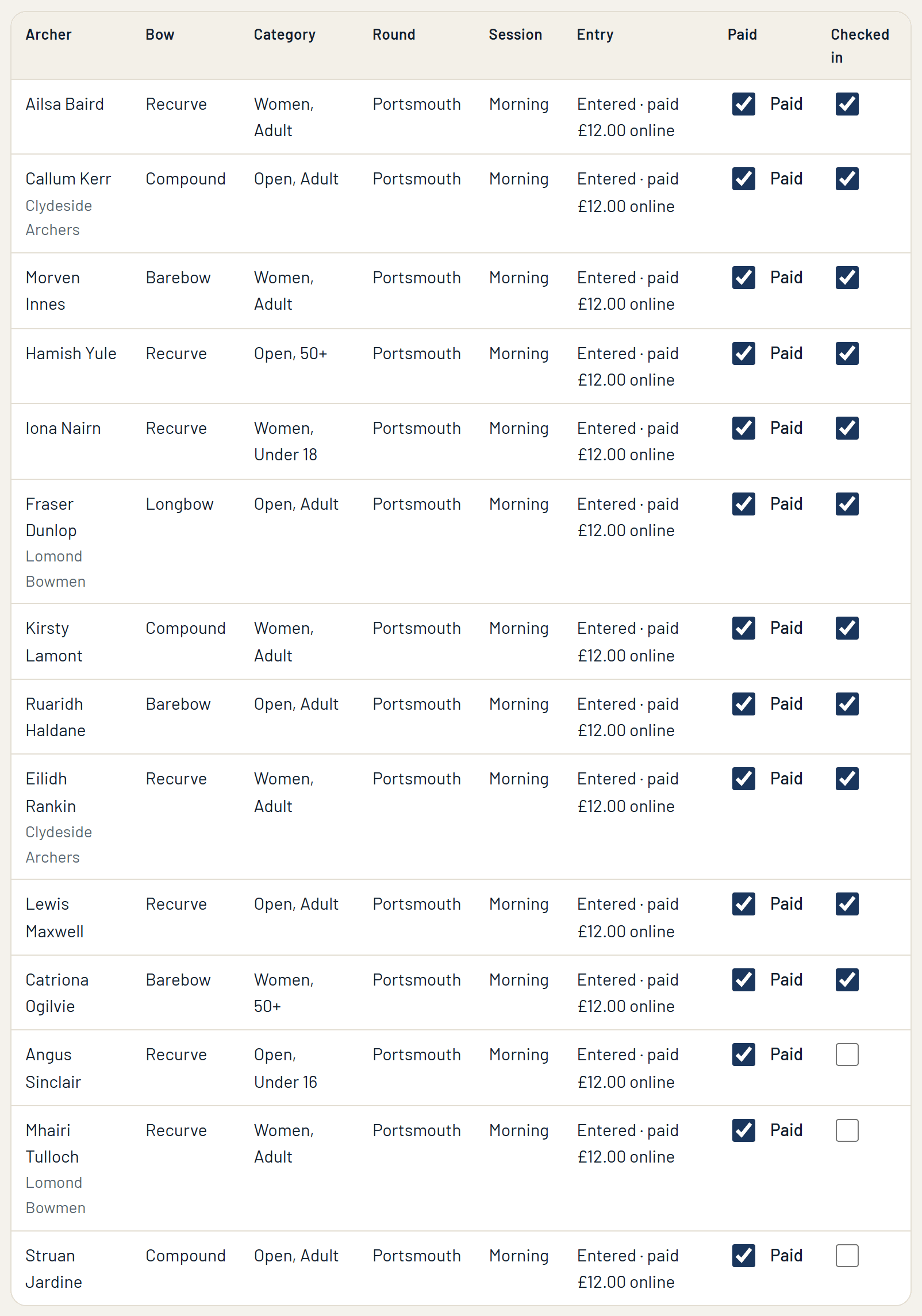
From the start of the event's day, archers check in in the app when they arrive, and see their target. On the event's page in the console you can see who has checked in, and tick an archer in yourself at the desk.
8. Start shooting and score
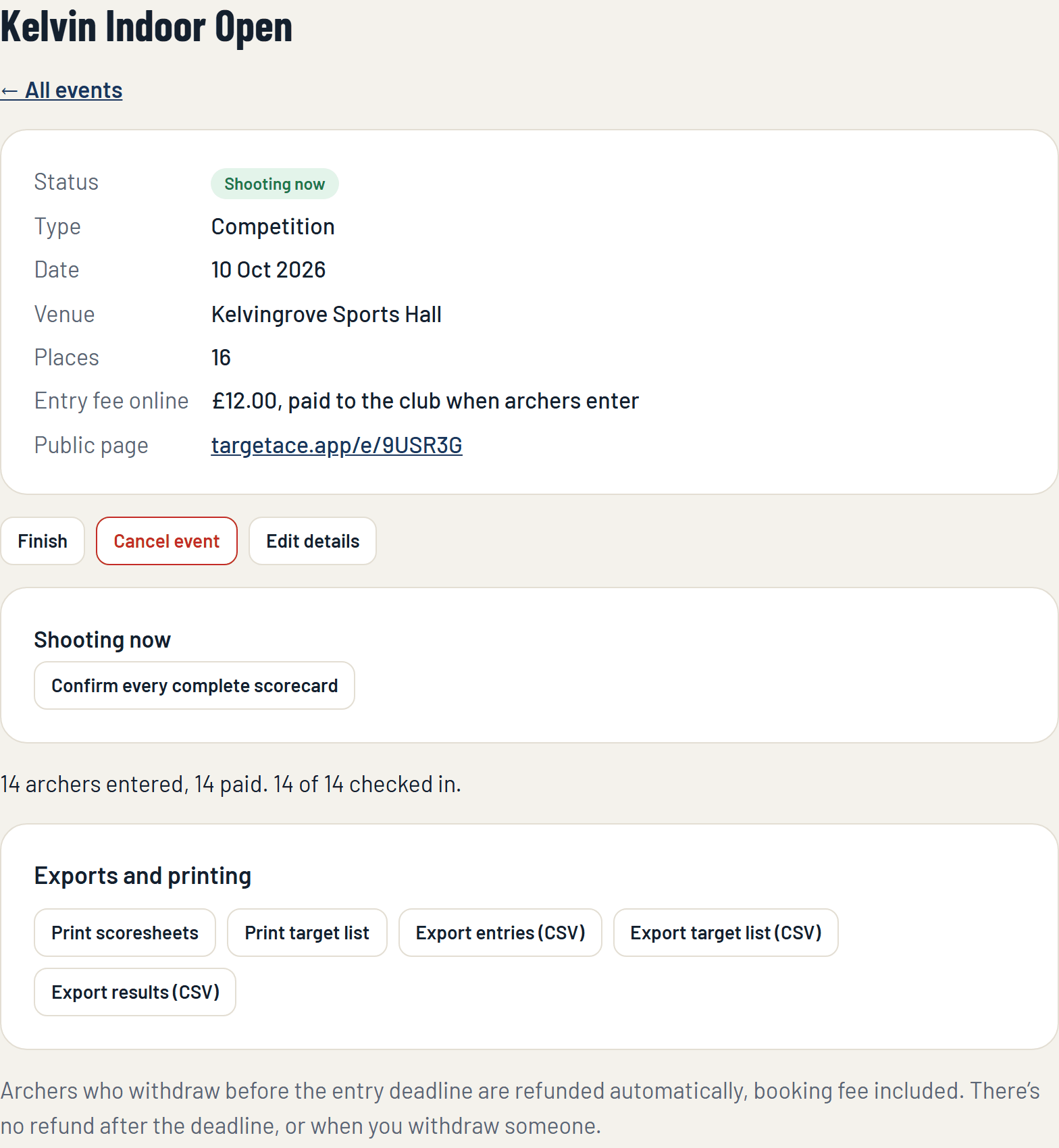
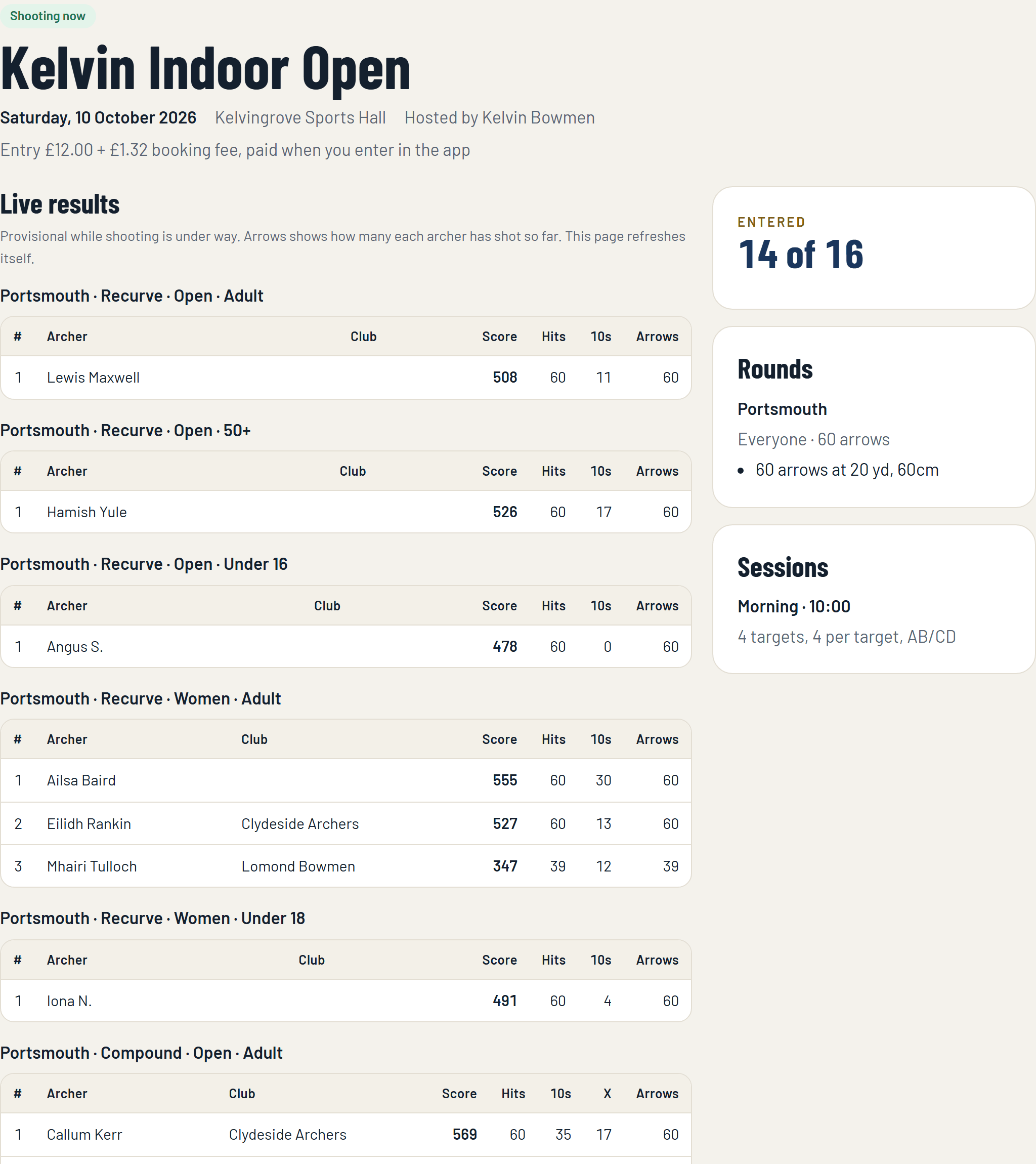
When you are ready to begin, press Start shooting (in the console, or in the app under Run the event). The event's page changes to Shooting now.
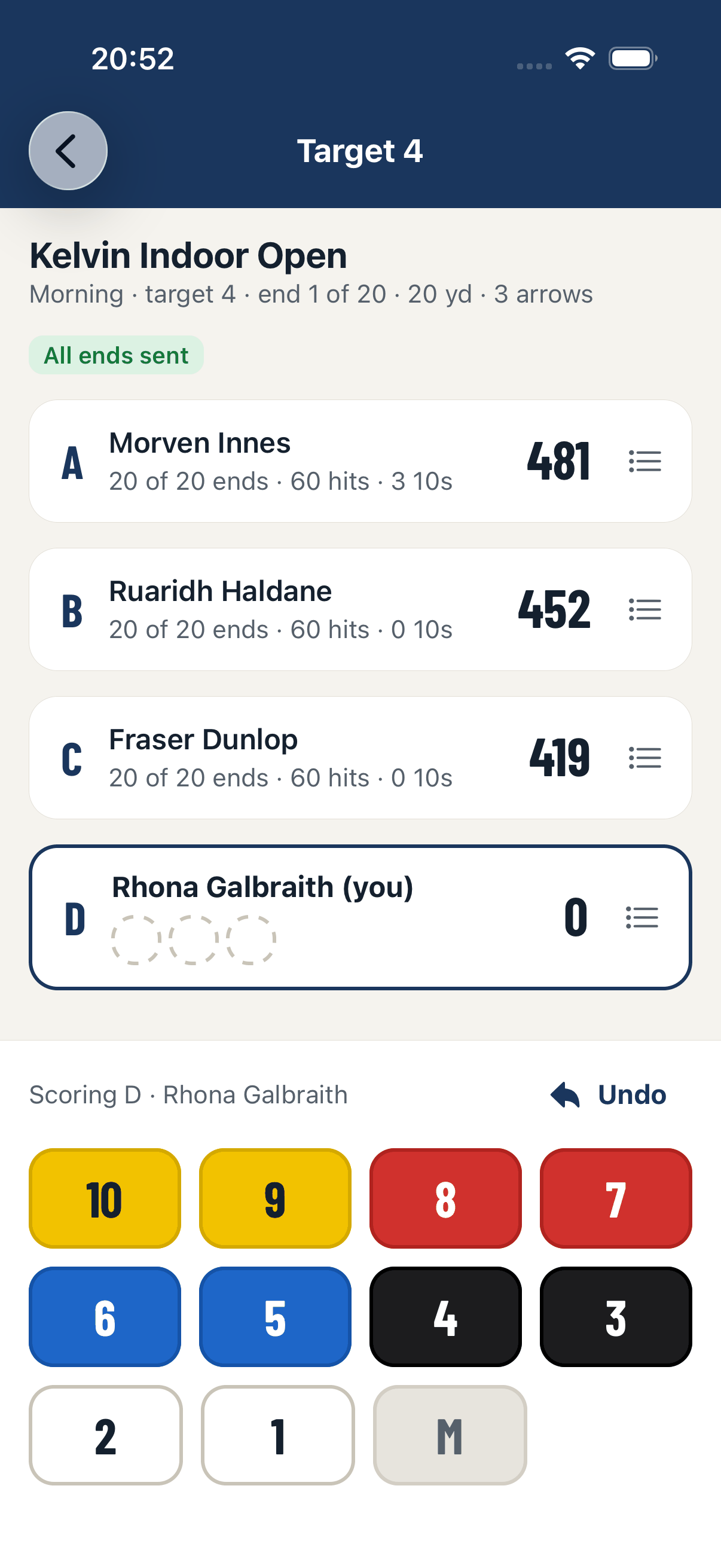
Each target scores on one phone. One archer on the target opens the event in the app, chooses Score my target, and enters everyone's arrows end by end. The scores go to TargetAce as each end is entered, so the results are live. If the phone has no signal the ends are kept on it, and sent when the signal comes back.
Where a shoot type has more than one round, the event's settings say whether each target moves on by itself or waits for you to start each round. If rounds wait for you, a Start round button appears on the event's page.
9. Confirm the scores
Scores are confirmed in the way you chose in step 2:
- By an organiser: when scorecards are complete, press Confirm every complete scorecard. Confirmed scorecards are locked. Any still being scored are left alone, so you can press it again later.
- On the target: when everyone who shot a round has agreed its scores in the app, they are confirmed without you.
An organiser can always confirm or correct a scorecard.
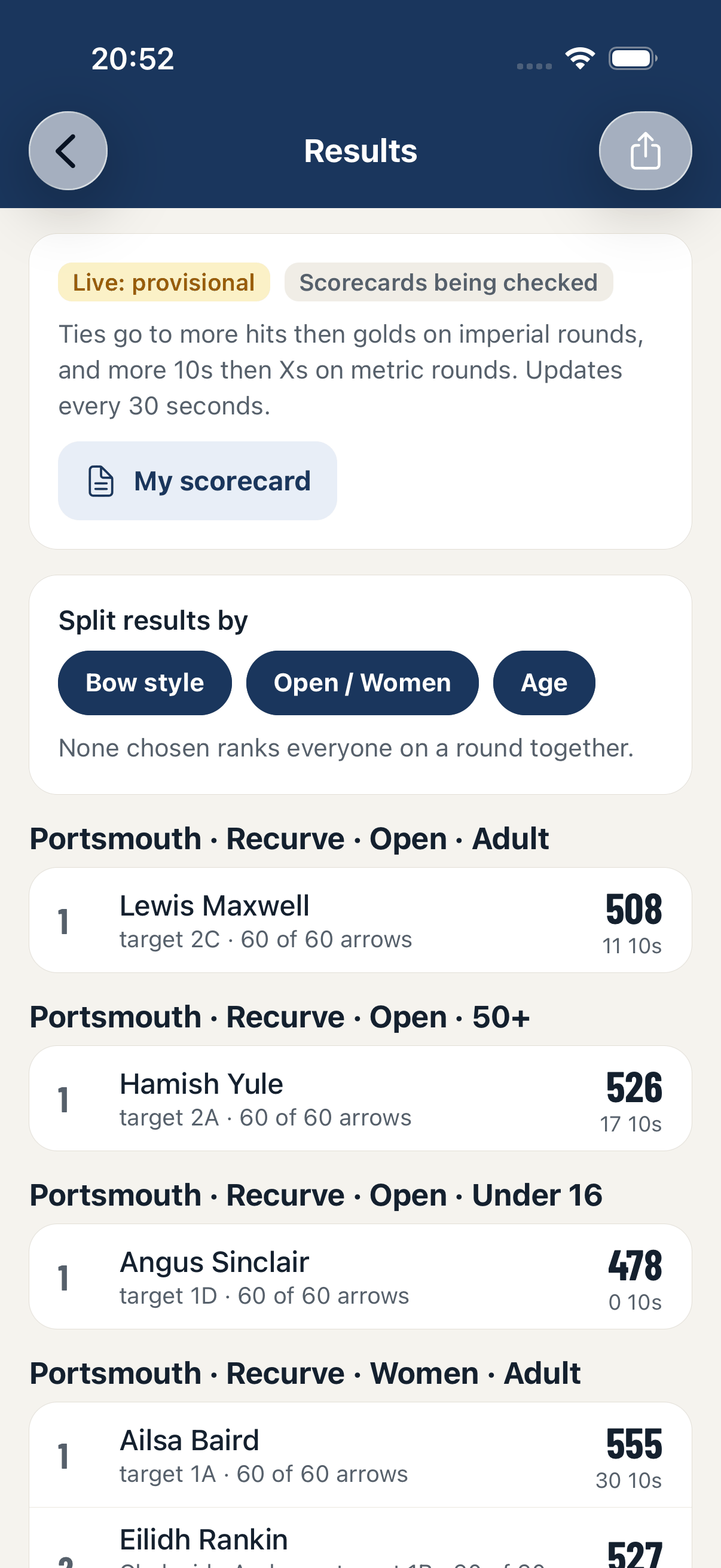
Meanwhile everyone can follow the live results, in the app and on the public page, split by round, bow style and category. (If you chose to show results only at the end, only organisers see them until then.)
10. Finish, and the results
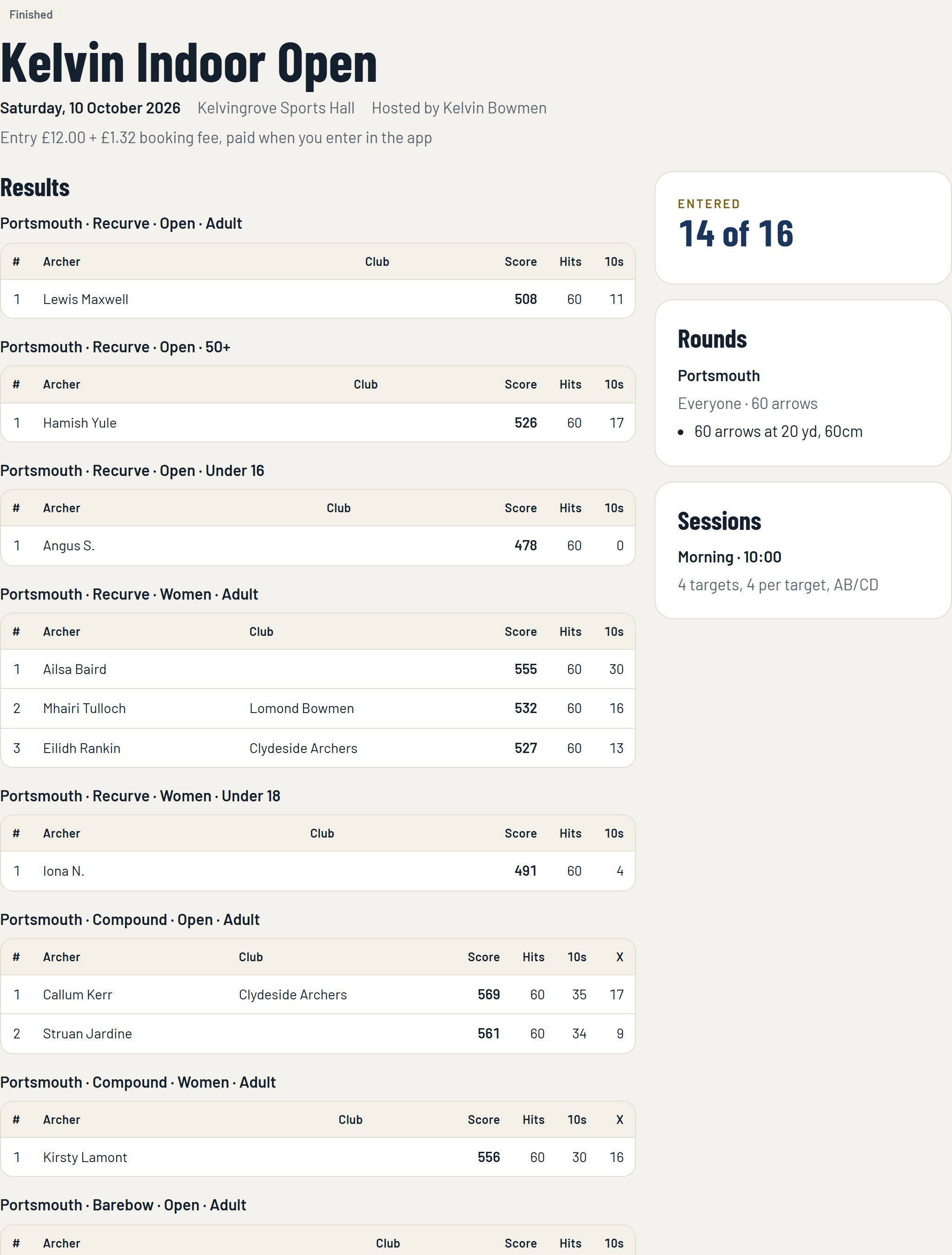
When shooting is over and the scorecards are confirmed, press Finish. Scoring closes and the results become final.
- The results stay on the public page and in the app.
- Export results gives a spreadsheet of the final placings (Club Plus), for your own records or to send on.
- If your club keeps club records in TargetAce and counts events, any score that beats a record is proposed for confirming.
Checklist
- Entry fees are Ready in Club settings.
- The event has its details, rounds and sessions, and the places look right.
- Open entries, and share the public page or the event code.
- Before the day: draw, adjust and publish the target list in the app. Print target lists and scoresheets if you want paper.
- On the day: check archers in, then Start shooting.
- Each target scores on one phone.
- Confirm the scorecards.
- Finish the event, and export the results.
If something isn't working
- Open entries is refused. An event needs at least one round, one session and an entry fee, and the club must be able to take payments.
- An archer can't see the event. A members-only event shows only to members of your club. Give other archers the event code, or make the event public.
- An archer has no target. They were not placed when the list was drawn, or entered afterwards. Open the target list in the app and place them.
- A target's scores are wrong. The phone scoring the target can change an end before the scorecard is confirmed. After that, an organiser corrects it.
Still stuck? Email [email protected].