Beginners' courses and come and try sessions with TargetAce
An organiser's guide: set the course up, take bookings and payment online, and keep the register.
Download this guide (PDF) Open the Organiser Console
- What this guide covers
- What you need
- 1. Accept the course bookings agreement (once)
- 2. Create the course
- 3. Set up the booking form
- 4. Open bookings
- 5. How people book
- 6. Cancellations and refunds
- 7. The bookings, the register and invitations
- 8. What happens to people's details
- Checklist
- If something isn't working
What this guide covers
TargetAce takes bookings for your beginners' courses and come and try sessions. People book and pay on a public page, with no app and no account. You get the list of who is coming, a register to tick, and a way to invite those who finish to join the club.
- A beginners' course usually runs over several sessions. A come and try session is usually one. They are set up the same way.
- The people booking are the public, so a booking asks only for what the club needs, and their details are deleted afterwards (section 8).
- Bookings are always paid online, into the club's own Stripe account.
Paid courses are for clubs in the UK for now.
What you need
- To be an organiser of your club in TargetAce, and signed in at targetace.app/console.
- Entry fees set up in Club settings, so payments reach the club's bank account. It takes about ten minutes with Stripe, and the events guide shows it step by step.
- To accept the course bookings agreement for your club (step 1).
1. Accept the course bookings agreement (once)
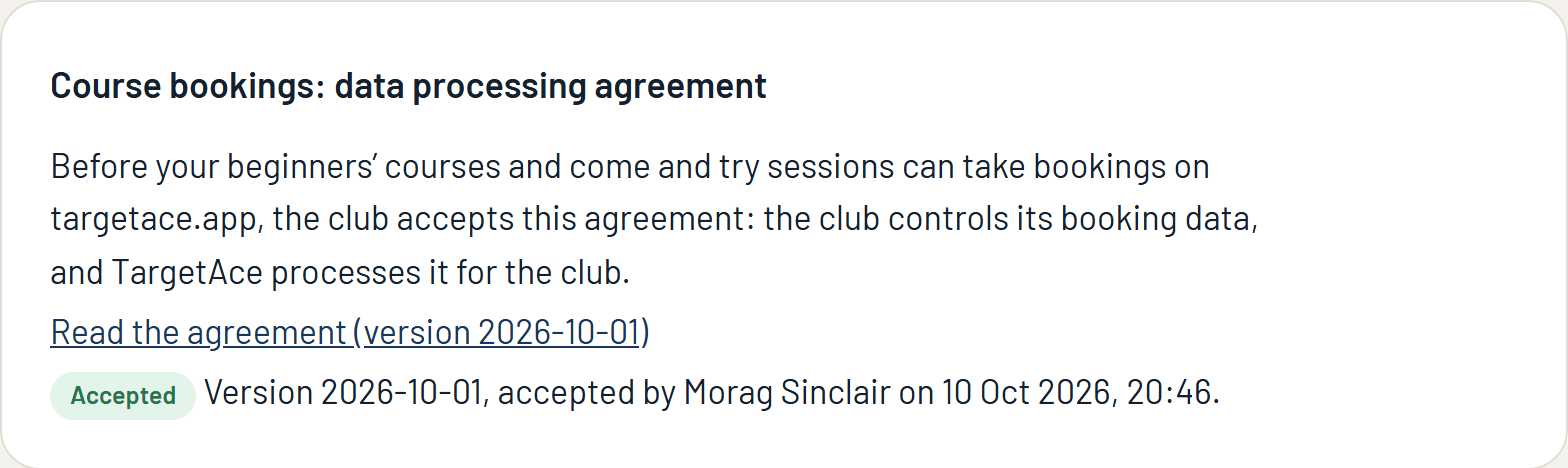
Because the people booking are not TargetAce users, the club is in charge of their details and TargetAce handles them on the club's behalf. The agreement sets that out. Open Events in the console: the agreement is at the top of the page until an organiser has accepted it. Read it, tick the box and press Accept.
2. Create the course
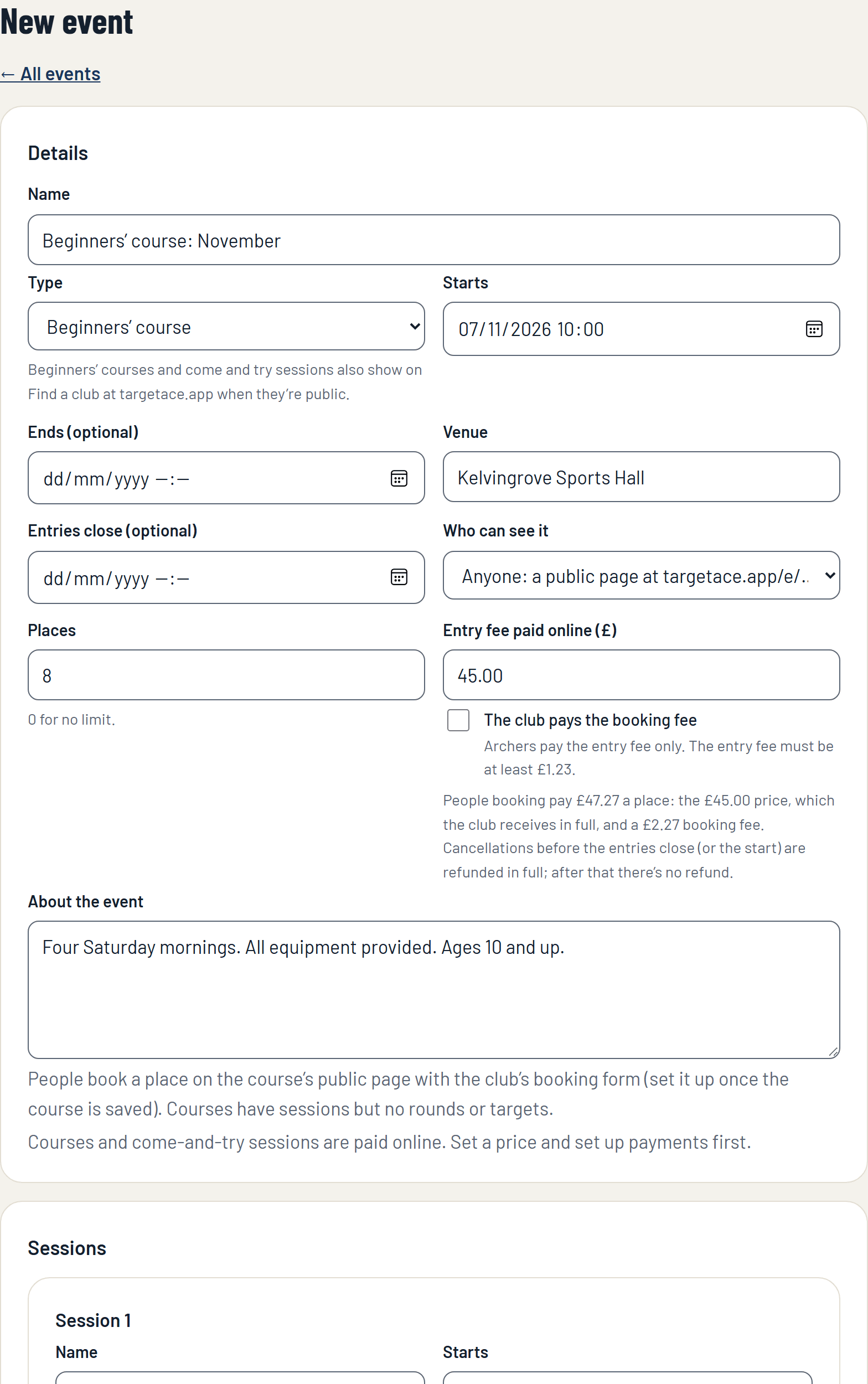
On the Events page press New event, and set Type to Beginners' course or Come and try session. The form changes to suit: a course has sessions, but no rounds and no targets.
- Name, Starts, Venue, and About the event: what people should know before they book. Say what is provided and any age limits.
- Entries close (optional): the last moment to book. It is also the refund deadline (section 6).
- Who can see it: choose Anyone. Only a public course can be booked.
- Places: how many people the course can take.
- Entry fee paid online: the price of a place. The note underneath shows what the person booking will pay.
- Sessions: one for each time the course meets, with its date and time.
Press Create event. It is saved as a draft.
How the money works: the person booking pays your price plus a booking fee, which covers the card costs and TargetAce's charge of £1 a place (75p for a Club Plus club), so the club receives its price in full. Or tick The club pays the booking fee, and people pay your price only.
3. Set up the booking form
Open the course and press Booking form.
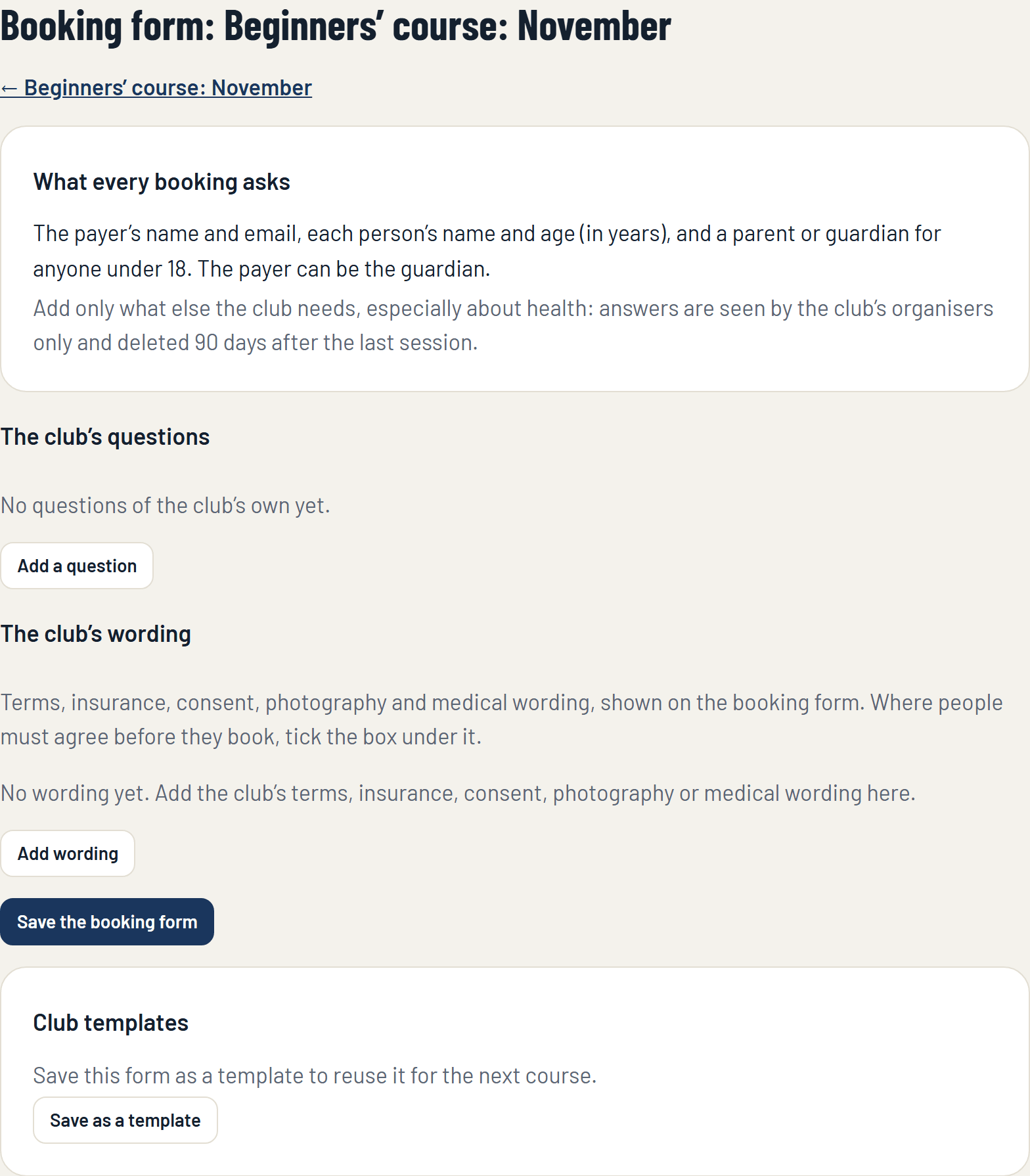
Every booking already asks for the payer's name and email, each person's name and age, and a parent or guardian for anyone under 18. Add only what else the club needs:
- The club's questions: an emergency contact, say, or anything the coaches need to know about health. Answers are seen by the club's organisers only.
- The club's wording: terms, insurance, consent, photography or medical wording. Where people must agree before they book, tick the box under it.
- Templates: save the form as a template and reuse it for the next course.
4. Open bookings
Back on the course's page, press Open bookings. The course now has a public page, at an address like targetace.app/e/JWKBPG. Share it on your website, in emails and on social media.
A public course can also show on TargetAce's Find a club and Events and courses pages, where people looking for archery near them will see it.
5. How people book
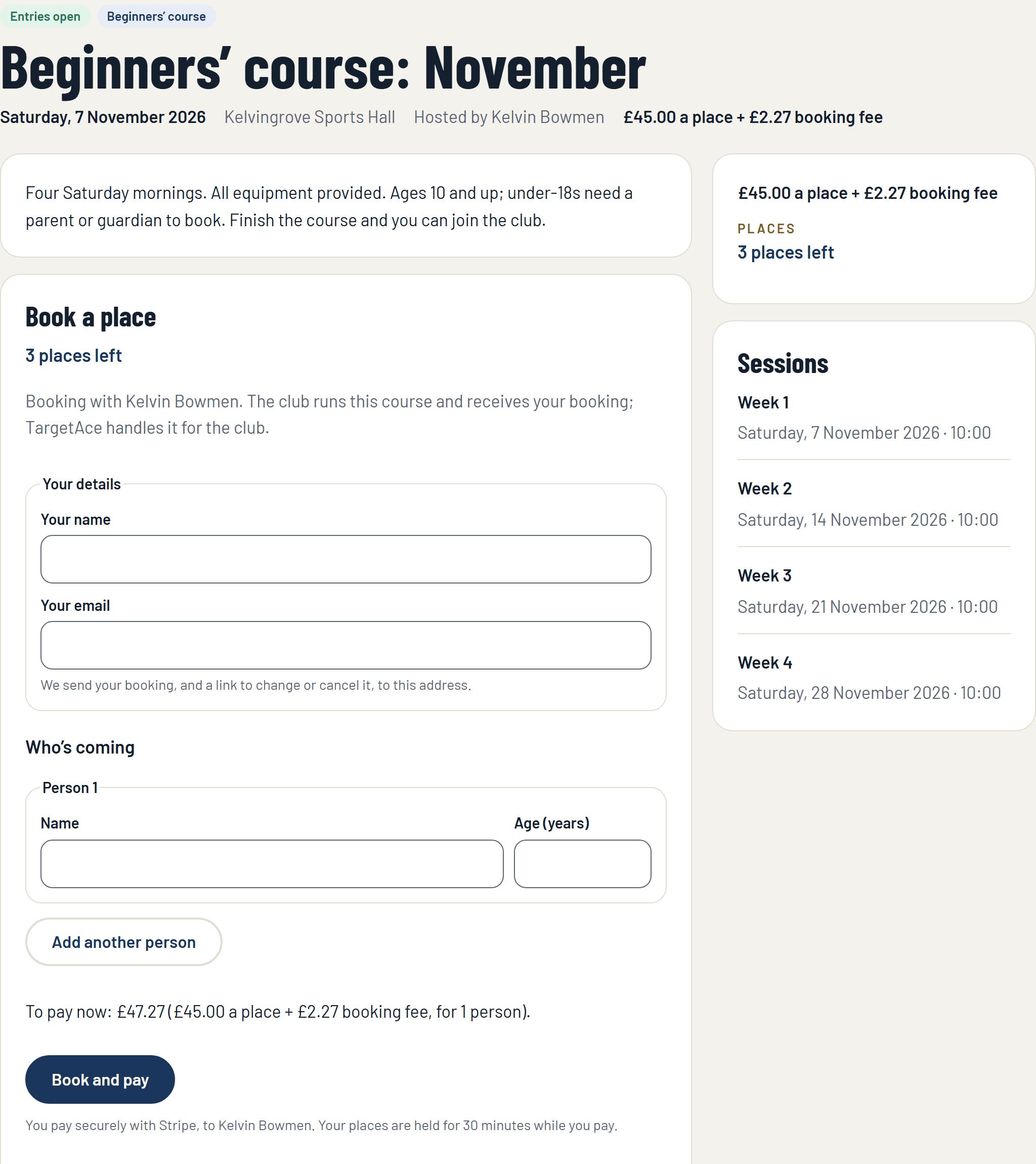
On the public page the person booking gives their details, adds each person who is coming, answers your questions, and presses Book and pay. They pay by card through Stripe.
- One person can book for several, for example a parent and two children.
- Their places are held for 30 minutes while they pay.
- When the payment goes through they get a confirmation email, with a link to change or cancel the booking.
- When the course is full, people can join the waiting list. If places come free they are offered to the first booking waiting, which has a set time to pay.
6. Cancellations and refunds
- Someone cancels with the link in their email, for some or all of their places. Before the refund deadline (the time entries close, or else the start of the course) they get back everything they paid for those places, booking fee included. After it there is no refund.
- You cancel a booking, from the course's page: the person is emailed, with a note from you if you add one, and is refunded in full.
- You cancel the whole course: everyone booked is emailed and refunded in full.
7. The bookings, the register and invitations
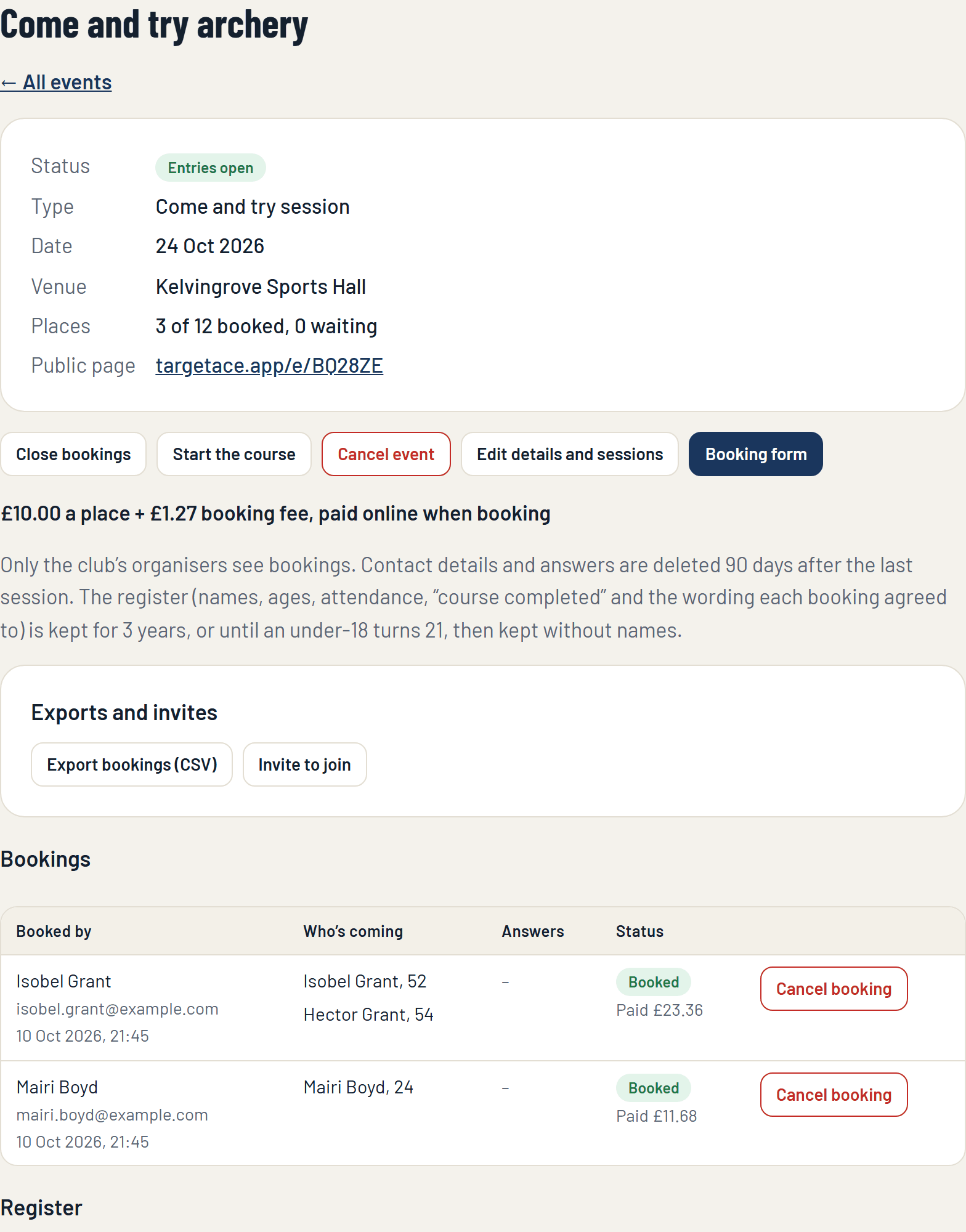
The course's page lists every booking: who booked, who is coming and their ages, their answers, and what was paid.
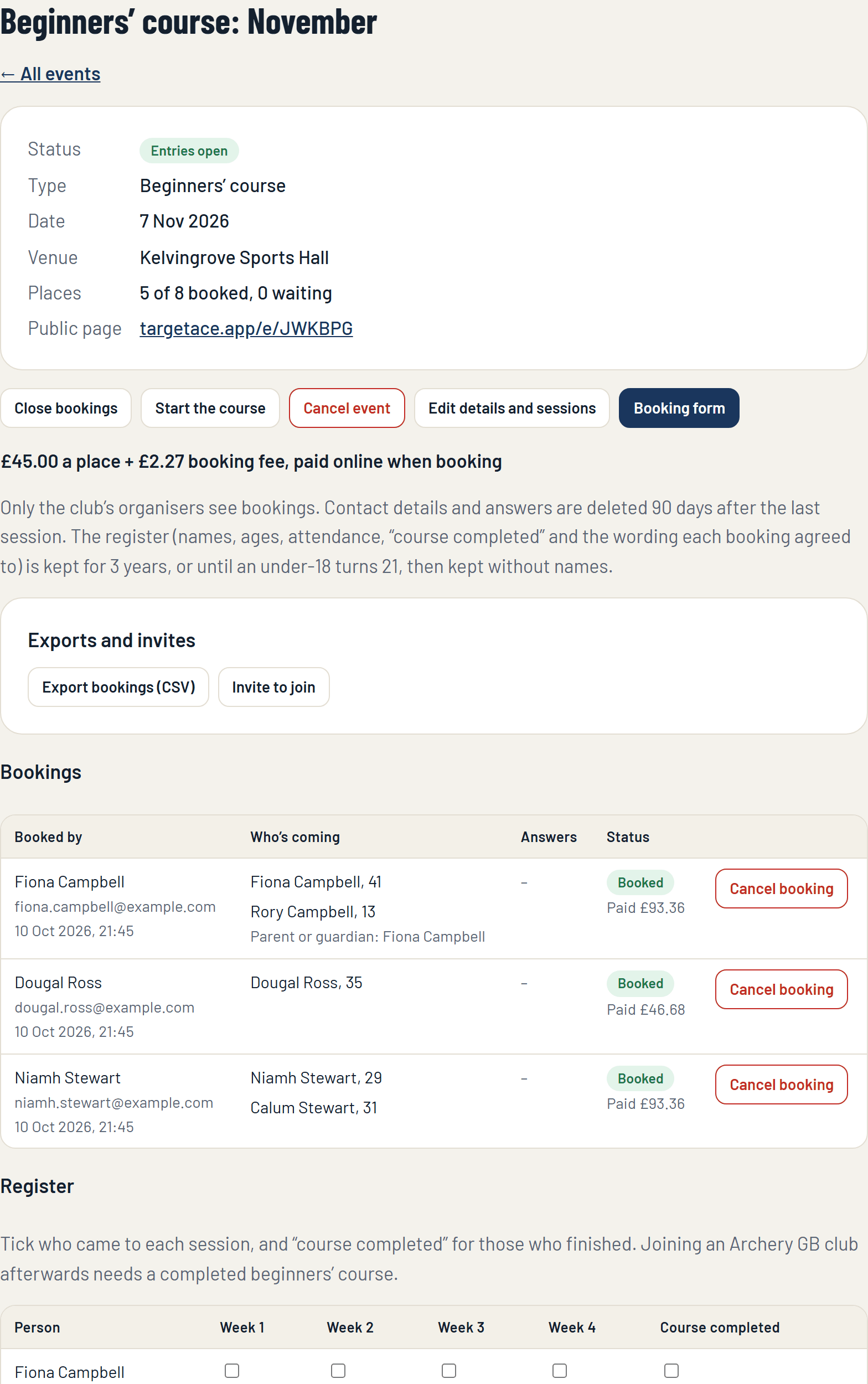
- The register: tick who came to each session, and course completed for those who finished. Joining an Archery GB club afterwards needs a completed beginners' course, so this is your record of it.
- Invite to join: emails each booking with someone ticked as course completed, with thanks and the club's invite link, so they can join your club in the app.
- Export bookings (Club Plus): the bookings as a spreadsheet.
- Close bookings, Start the course and Finish move the course on, as for any event.
A come and try session works the same way, with one session on its register.
8. What happens to people's details
Only the club's organisers see bookings.
- Contact details and answers are deleted 90 days after the last session.
- The register (names, ages, attendance, course completed, and the wording each booking agreed to) is kept for 3 years, or until an under-18 turns 21, and then kept without names.
Checklist
- Entry fees are Ready in Club settings.
- The course bookings agreement is accepted.
- The course has its sessions, its places and its price, and is set to Anyone.
- The booking form has your questions and your wording.
- Open bookings, and share the public page.
- On the day: tick the register.
- Afterwards: tick course completed, and Invite to join.
If something isn't working
- Open bookings is refused. The course needs a price, the club must be able to take payments, the agreement must be accepted, and the course must be set to Anyone.
- The public page has no Book a place. Bookings have not been opened, or have been closed.
- Someone didn't get their email. Ask them to check their junk folder. You can see their booking on the course's page.
Still stuck? Email [email protected].